If you are running a business in Sri Lanka, using a free email address
like [email protected] might not look
professional to your clients. Having a custom business email with a .lk or .com.lk extension (like [email protected]) builds local trust and
makes your brand look highly professional.
The good news is, if you have a web hosting plan with cPanel (like our Host Asia packages), creating a business email is completely free and takes less than 2 minutes!
Here is a simple, step-by-step tutorial on how to create your new professional email account in cPanel.
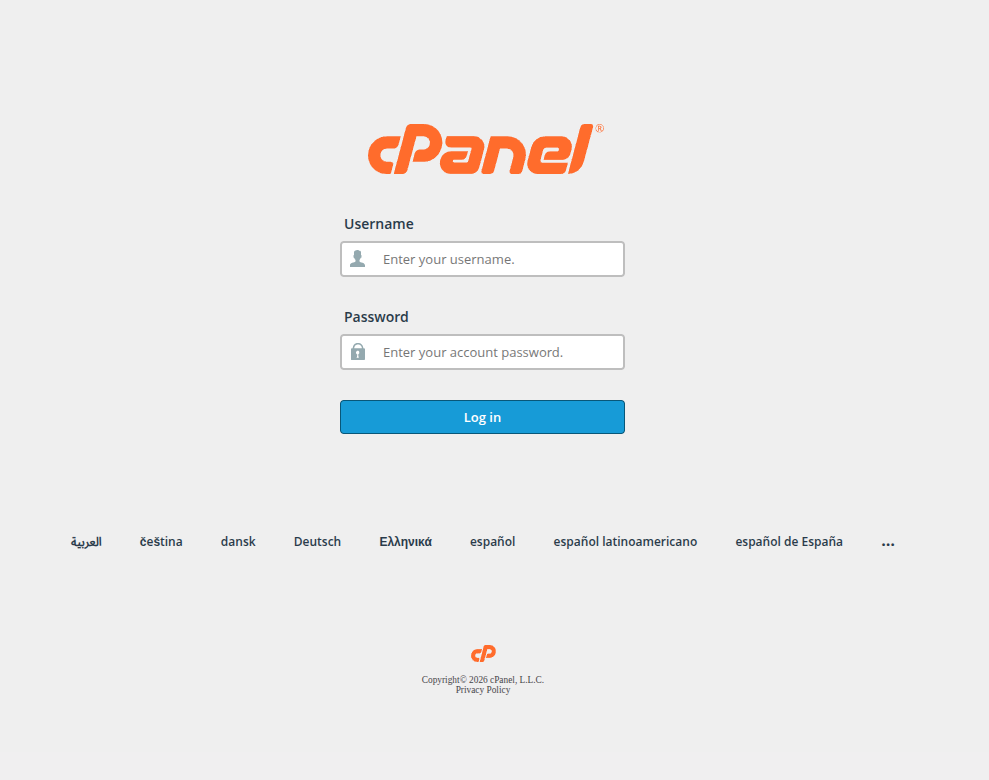
Step 1: Log in to your cPanel Account
First, you need to access your cPanel dashboard. You can easily do this by logging into your Host Asia client area and clicking on your active hosting service, then selecting "Login to cPanel".
Alternatively, you can simply type yourdomain.lk/cpanel in your web browser.
Step 2: Locate the Email Accounts Section
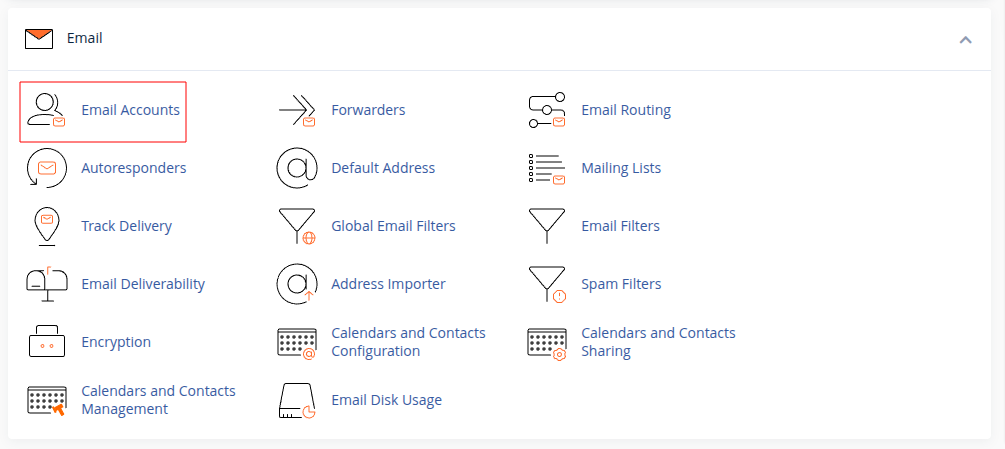
Once you are logged into your cPanel dashboard, scroll down to the Email section and click on the Email Accounts icon.
Step 3: Click on the + Create Button
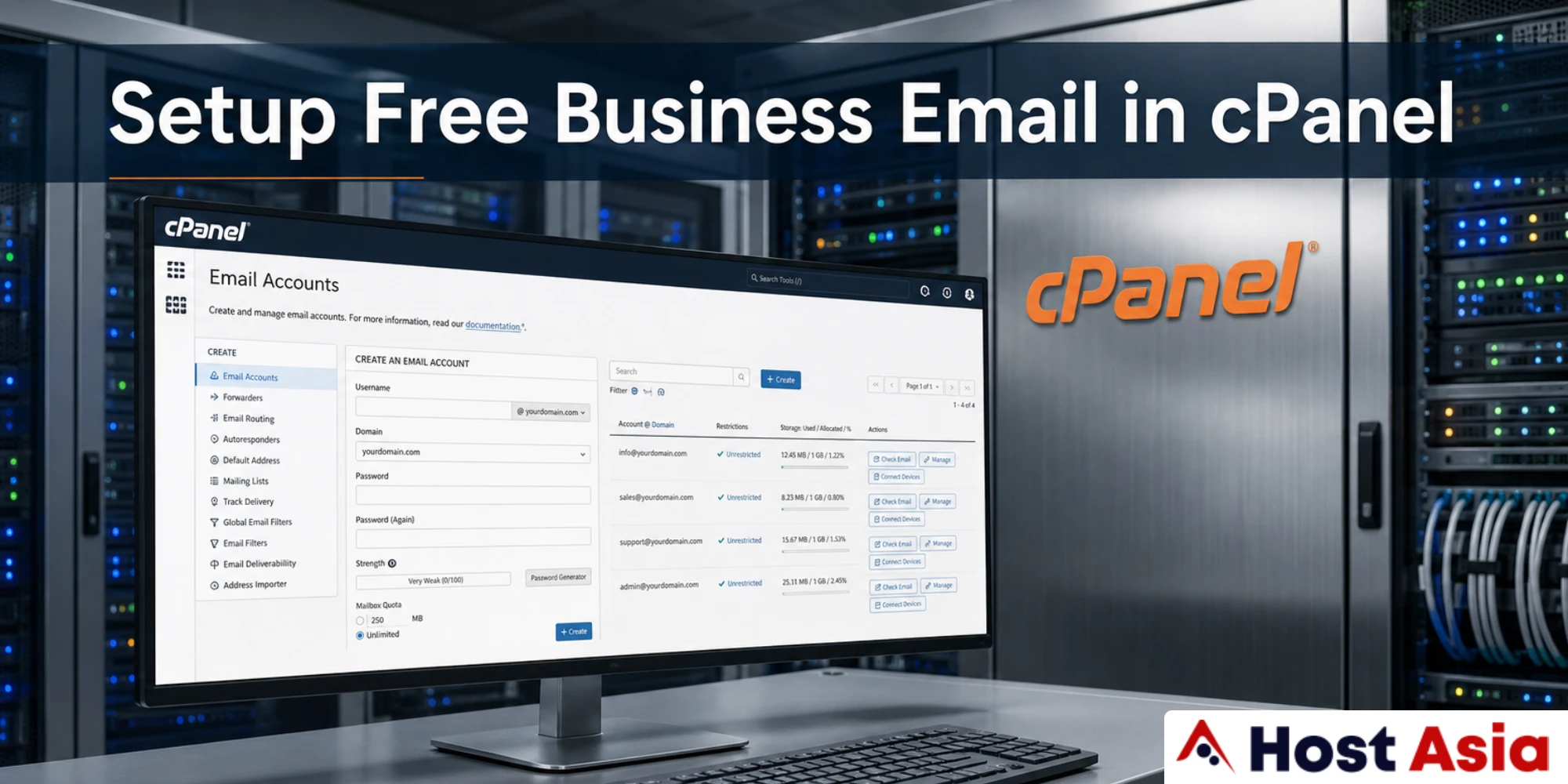
In the Email Accounts menu, you will see a list of any existing email addresses you have. To make a new one, navigate to the right side of the screen and click on the blue + Create button.
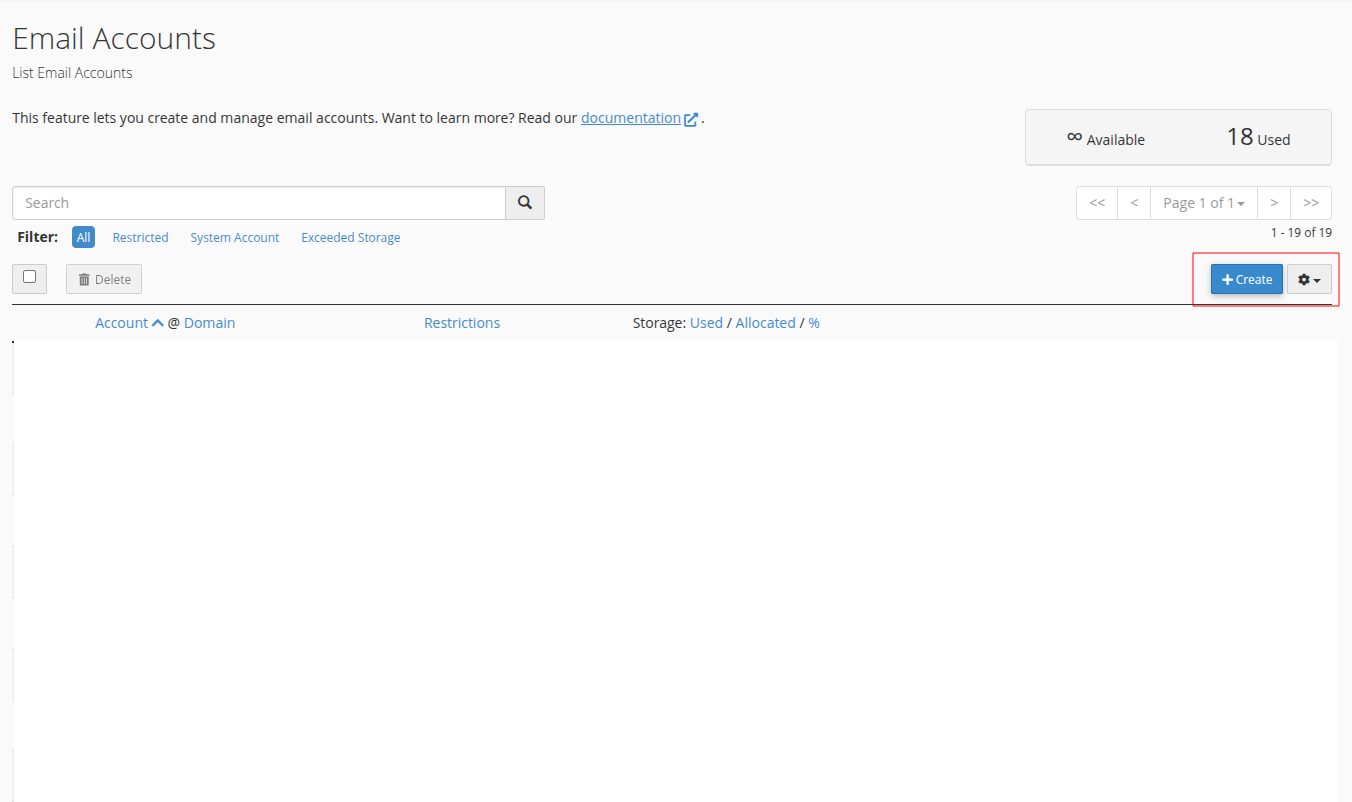
Step 4: Fill in your Email Details
Now, you need to set up your email address. Follow these simple instructions on this page:
- Domain:
f you have multiple domains hosted on your account, select your main Sri Lankan
domain (e.g.,
yourbusiness.lk) from the drop-down menu. - Username:
Enter the prefix you want for your email (e.g., type
info,sales, orcontact). - Password:
Set password now: Type a strong password that you will use to log in to this email. (Recommended)
Send login link to alternate email: Provide your personal email, and the system will send you a link to configure your password later.
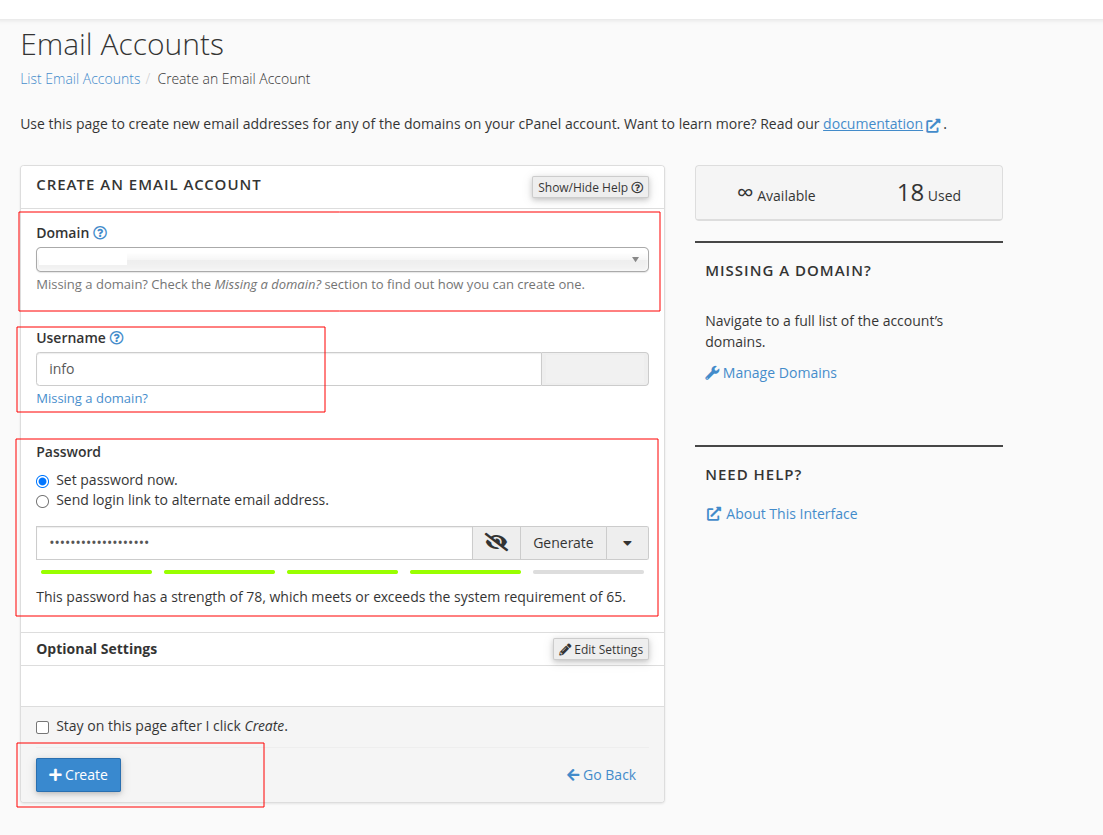
Step 5: Finalize and Create
Once you have entered your desired username and a strong password, scroll down to the bottom of the page and click the + Create button.
Congratulations! You have successfully created your professional business email.
Step 6: How to Access and Read Your Emails (Webmail)
Now that your email is ready, how do you check your inbox? It's very simple:
- In the same Email Accounts menu, find your newly created .lk email address in the list.
- Click on the Check Email button next to it.
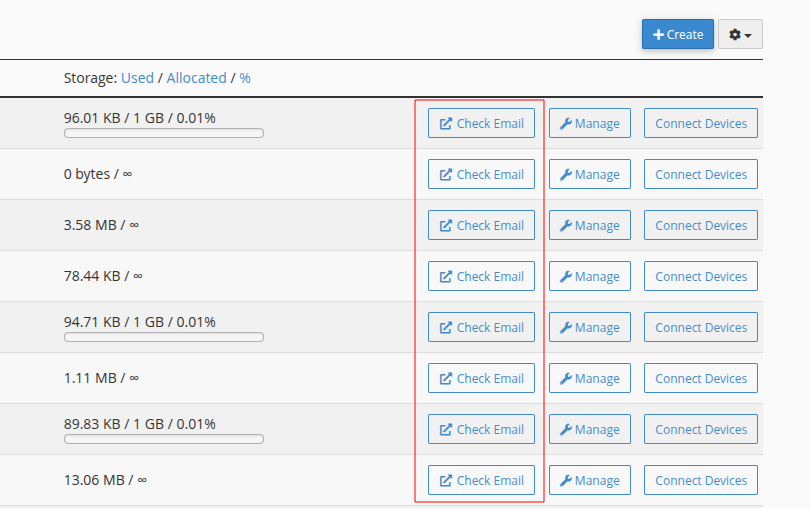
The system will take you to the Webmail interface. You will be asked to choose a webmail client. We highly recommend clicking on Roundcube, as it is very user-friendly and looks just like standard email platforms like Gmail.
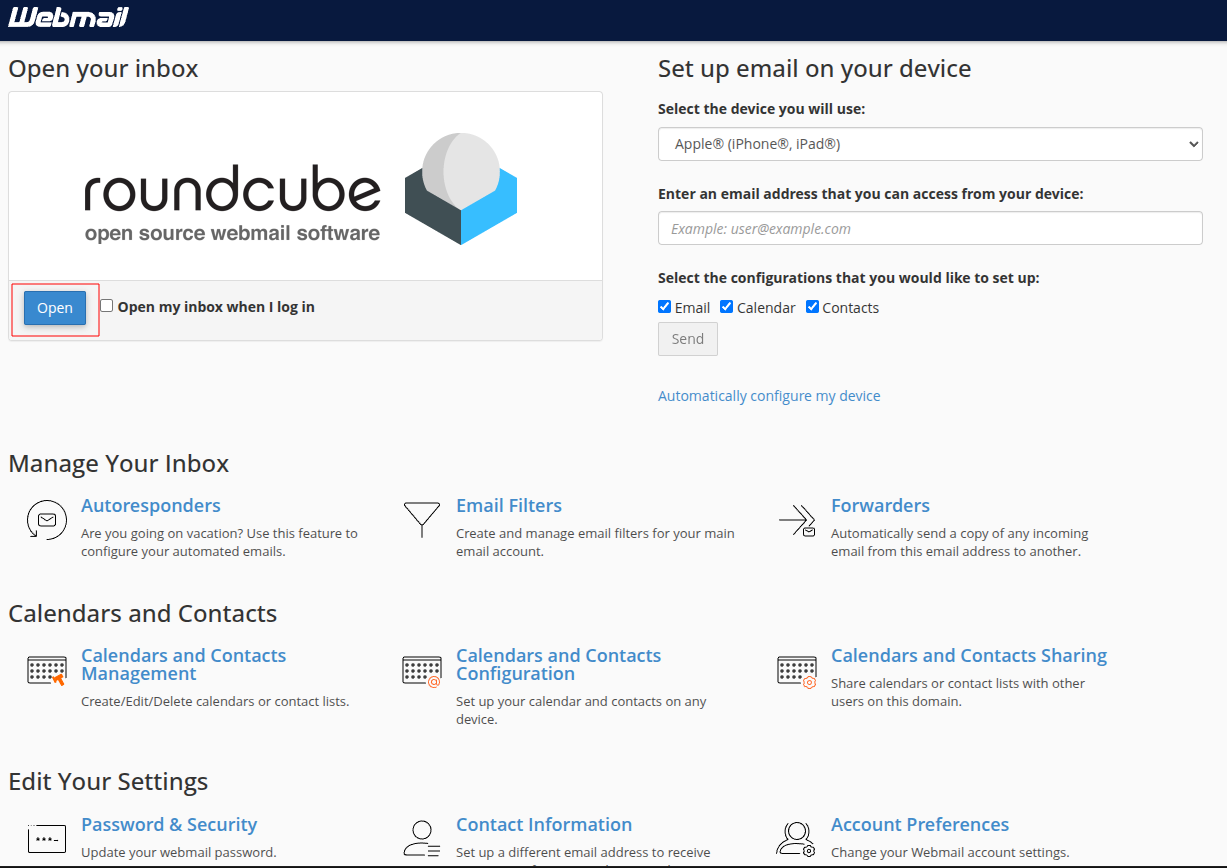
Pro Tip: You can always access your webmail directly without
logging into cPanel by visiting yourdomain.lk/webmail in your browser!
Looking for Reliable Web Hosting in Sri Lanka?
Whether you need to register a .LK domain or looking for fast, secure, and affordable web hosting with local support, check out our Host Asia Web Hosting Plans today. We help Sri Lankan businesses grow online!
Host Asia Hosting Plans Start at 250 LKRFrequently Asked Questions
You Need to Know!
Is creating an email account in cPanel completely free?
Can I connect my cPanel email to my mobile phone or Gmail?
How can I check my emails without logging into cPanel every time?
yourdomain.lk/webmail (replace
with your actual domain) into your web browser. Just log in using your full
email address and the password you created.
 Recent Topics for you